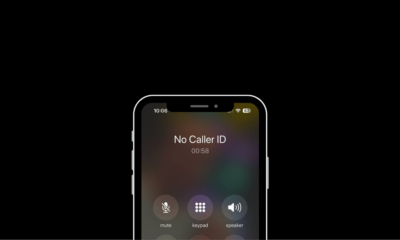
How To
How To Block Unwanted Calls and Texts on Your Smartphone.


Unwanted calls and texts can be a nuisance, but fortunately, there are several methods and tools available on both Android and iOS smartphones to help you regain control over your communications.
In this guide, we will walk you through the steps to block unwanted calls and texts effectively.
Blocking Unwanted Calls:
For Android Devices:
1. Using the Default Phone App:
- Open the Phone app.
- In the upper-right corner, tap the three dots (menu).
- Select “Settings” and then “Blocked numbers.”
- To add the unwanted number, tap “Add a number”.
2. Using Third-Party Apps:
- You can download call-blocking apps like Hiya, Truecaller, or Nomorobo from the Google Play Store for enhanced blocking features.
For iOS Devices:
1. Using the Default Phone App:
- Open the Phone app.
- Tap the “i” icon next to the unwanted number in your recent calls.
- Scroll down and select “Block this caller.”
2. Using Do Not Disturb:
- Go to “Settings” > “Do Not Disturb.”
- Navigate to “Allow Calls From” and select “All Contacts” or a particular group by scrolling down.
- Unwanted calls from outside your contacts will be silenced.
Blocking Unwanted Texts:
For Android Devices:
1. Using the Default Messaging App:
- Open your messaging app.
- Tap and hold the unwanted message.
- Select “Block” or “Add to spam.”
2. Using Third-Party Apps:
- Download SMS blocking apps like SMS Blocker, Text Blocker, or SMS Block & Blocker from the Google Play Store.
For iOS Devices:
1. Using the Default Messages App:
- Open the Messages app.
- Tap the unwanted message.
- Tap the sender’s name at the top.
- Select the “Info” icon (i) and choose “Block this caller.”
Additional Tips:
- To manage blocked numbers on both Android and iOS, you can go to “Settings” > “Phone” > “Blocked Contacts” or “Messages” > “Blocked.”
- Remember to periodically review your blocked list to unblock any contacts that you want to receive messages or calls from.
Reporting and Unsubscribing:
- If you receive spam calls, report them to the Federal Trade Commission (FTC) at ftccomplaintassistant.gov.
- Unsubscribe from unwanted marketing text messages by following the instructions within the message or contacting the sender.
Avoiding Unwanted Calls and Texts:
- Be cautious while giving up your phone number online or to random individuals.
- Consider using a secondary phone number for online forms and registrations.
- To reduce telemarketing calls, register your phone number with the National Do Not Call Registry (donotcall.gov).
Third-Party Solutions:
- There are third-party call and text blocking services like YouMail and RoboKiller that offer advanced features, including voicemail transcription and spam call identification.
Keeping Your Data Safe:
- Be cautious when downloading call and text-blocking apps. Only install apps from reputable sources like the Google Play Store or Apple App Store.
- Review the permissions an app requests before installing it and avoid granting excessive access to your device.
In conclusion, blocking unwanted calls and texts on your smartphone is a practical way to maintain your peace and privacy.
By following the steps outlined above, you can effectively filter out unwanted communications and enjoy a more pleasant mobile experience.
Additionally, it’s essential to stay vigilant, be mindful of your online presence, and periodically review your settings to ensure unwanted calls and texts remain at bay.
Frequently Asked Questions
1. Are there third-party apps available for blocking unwanted calls?
- Yes, several apps like Truecaller, Hiya, and Nomorobo can help identify and block spam calls.
2. Can I block text messages from specific numbers?
- Yes, you can usually block text messages from specific numbers in the messaging or SMS settings of your smartphone.
3. How do I block calls from unknown numbers or private callers?
- Enable the option to block calls from unknown or private numbers in your phone settings. This is often found in the call settings under “Call blocking” or a similar menu.
3. Do blocked calls go to voicemail?
- Depending on your phone settings, blocked calls may go to voicemail or be completely rejected. Check your call-blocking settings to customize this feature.
5. Can I block calls and texts from specific area codes?
- Some smartphones and third-party apps allow you to block calls and texts based on area codes. Check your phone or app settings for this option.